

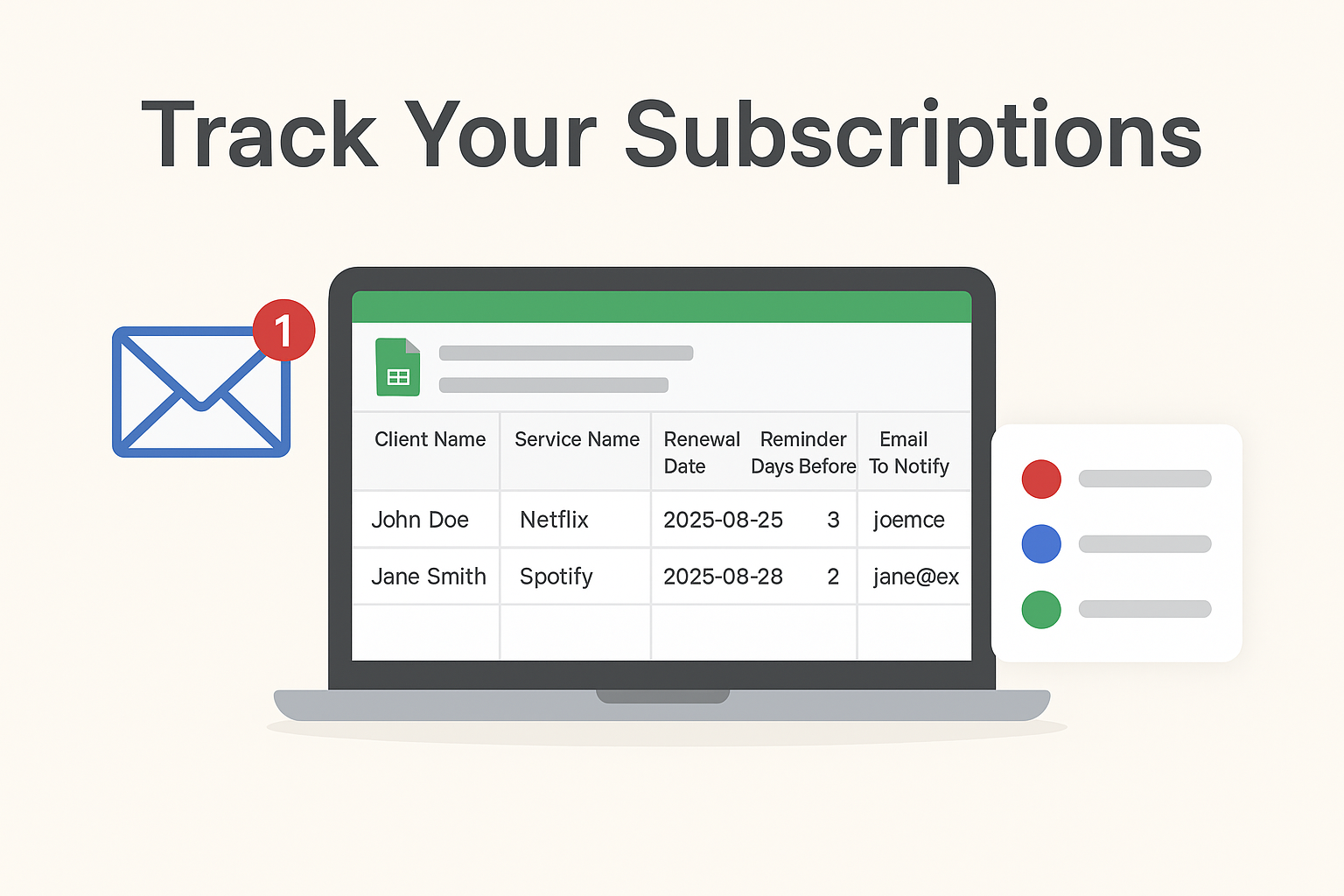
Keeping track of subscriptions—like Netflix, Spotify, or software services—can be tedious. Missing a renewal can cost money or disrupt service. Luckily, you can automate this process using Google Sheets and Google Apps Script to get automatic email reminders.
This guide will walk you through creating a Subscription Tracker in Google Sheets that emails you reminders based on your preferences.
Step 1: Set Up Your Google Sheet
-
Open Google Sheets and create a new sheet.
-
Rename the first tab to Subscription Tracker.
-
Create these columns in row 1:
| Client Name | Service Name | Renewal Date | Reminder Days Before | Email To Notify | Details |
|---|
Column Explanation:
-
Client Name: The person or account associated with the subscription.
-
Service Name: Name of the subscription service.
-
Renewal Date: When the subscription renews (format: YYYY-MM-DD).
-
Reminder Days Before: How many days before the renewal you want to receive a notification.
-
Email To Notify: Email address to receive the reminder.
-
Details: Additional information about the subscription (optional notes, plan type, amount, etc.).
Step 2: Enter Sample Data
Fill in your sheet with sample subscriptions to test:
| Client Name | Service Name | Renewal Date | Reminder Days Before | Email To Notify | Details |
|---|---|---|---|---|---|
| John Doe | Netflix | 2025-08-25 | 3 | john@example.com | Entertainment TV plan |
| Jane Smith | Spotify | 2025-08-28 | 2 | jane@example.com | Premium monthly plan |
Step 3: Open Google Apps Script
-
In Google Sheets, go to Extensions → Apps Script.
-
Delete any default code in the editor.
-
Paste the following script:
function checkSubscriptions() {
  const sheet = SpreadsheetApp.getActiveSpreadsheet().getSheetByName('Subscription Tracker');
  const data = sheet.getDataRange().getValues();
  const today = new Date();
  today.setHours(0,0,0,0); // Ignore time

  for (let i = 1; i < data.length; i++) { // Skip header
    const client = data[i][0];
    const service = data[i][1];
    const renewalDate = new Date(data[i][2]);
    renewalDate.setHours(0,0,0,0);
    const reminderDays = Number(data[i][3]);
    const email = data[i][4];
    const details = data[i][5]; // Details column

    const diffTime = renewalDate - today;
    const diffDays = Math.ceil(diffTime / (1000 * 60 * 60 * 24));

    Logger.log(`Row ${i + 1}: ${service} | DiffDays: ${diffDays} | ReminderDays: ${reminderDays}`);

    // Send email if within reminder days
    if (diffDays <= reminderDays && diffDays >= 0) {
      const subject = `Subscription Renewal Reminder: ${service}`;
      const message = `Hi ${client},\n\n` +
                      `This is a friendly reminder that your subscription is coming up:\n\n` +
                      `Service Name     : ${service}\n` +
                      `Renewal Date     : ${renewalDate.toDateString()}\n` +
                      `Reminder Set For : ${reminderDays} day(s) before renewal\n` +
                      `Details          : ${details}\n\n` +
                      `Please make sure to take any necessary action before the renewal date.\n\n` +
                      `Thank you!`;

      MailApp.sendEmail(email, subject, message);
      Logger.log(`Email sent to ${email}`);
    }
  }
}
Step 4: Authorize the Script
-
Click the Run (▶️) button in Apps Script.
-
Google will ask for permission to access your sheet and send emails.
-
Click Review Permissions, select your account, and allow access.
Step 5: Set Up Automatic Triggers
-
In Apps Script, click the Triggers icon (clock icon on the left).
-
Click Add Trigger (bottom right).
-
Configure:
-
Function to run:
checkSubscriptions -
Deployment: Head
-
Event source: Time-driven
-
Type of time-based trigger: Hour timer
-
Every 8 hours
Step 6: Test Your Subscription Tracker
-
Add a test subscription with a renewal date a few days ahead.
-
Run the script manually.
-
Check your email to confirm the notification arrives.
-
View View → Logs in Apps Script to see which rows were checked and which emails were sent.
Step 7: Optional Enhancements
-
Dropdown Menus: Use Data → Data Validation to create dropdowns for “Service Name” or “Client Name” to reduce errors.
-
Formatting Dates: Ensure Renewal Date column is formatted as a date:
Format → Number → Date. -
Extra Columns: Add columns like “Amount,” “Category,” or “Subscription Link” and include them in emails.
-
HTML Emails: Make emails more visually appealing using HTML formatting via
MailApp.sendEmail(email, subject, '', {htmlBody: htmlContent}).
Step 8: Tips
-
Keep all dates in the same format (YYYY-MM-DD).
-
Add as many subscriptions as needed; the script loops through all rows automatically.
-
The script will send reminders even if the trigger runs a bit late.
-
Share the sheet with team members carefully; avoid deleting or moving columns to prevent errors.
Benefits of Automatically Track Your Subscriptions
With this Subscription Tracker in Google Sheets:
-
Track all subscriptions in one place.
-
Get automated email reminders before renewals.
-
Avoid missed payments and unnecessary charges.
This setup is perfect for personal use or small businesses managing multiple recurring services.