

When moving between Microsoft Excel and Google Sheets, many professionals wonder: “Can I use the same formulas and codes?” The short answer is: mostly yes, but not always. Both platforms share many similarities in their basic functions, but they differ significantly in advanced features, automation, and integrations.
1. Functions That Work the Same in Both
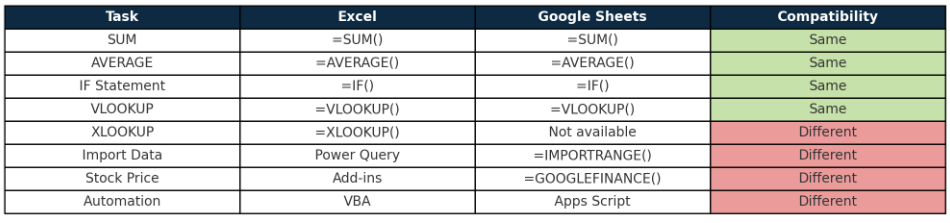
For most day-to-day tasks, the same formulas (or “codes”) work in both Excel and Google Sheets. These include:
- Mathematical & Statistical Functions
=SUM(A1:A10)=AVERAGE(A1:A10)=ROUND(A1,2)
- Logical Functions
=IF(A1>10,"Yes","No")=AND(A1>0, B1<100)=OR(A1="Yes",B1="Yes")
- Lookup Functions
=VLOOKUP(123, A1:D10, 2, FALSE)=HLOOKUP("Product", A1:D5, 3, FALSE)
- Text Functions
=CONCATENATE(A1," ",B1)or=A1 & " " & B1=LEN(A1)=TRIM(A1)
This means that if you are comfortable with Excel basics, you’ll feel right at home in Google Sheets.
2. Differences in Codes and Features
While basics are the same, certain features differ:
a) Automation & Macros
- Excel: Uses VBA (Visual Basic for Applications) for automation.
- Google Sheets: Uses Apps Script, which is based on JavaScript.
👉 The “codes” here are completely different.
b) Advanced Data Tools
- Excel: Offers Power Query, Power Pivot, advanced charting, BI integration.
- Google Sheets: Does not support these natively but integrates with BigQuery and Looker Studio.
c) Unique Functions
- Google Sheets only:
=IMPORTRANGE("URL","Sheet1!A1:C10")→ import data from another Sheet.=GOOGLEFINANCE("GOOG","price")→ fetch live stock price.
- Excel only:
=XLOOKUP()→ a modern replacement for VLOOKUP.=FILTERXML()→ extract data from XML documents.
3. Performance and Limits
- Excel: Can handle millions of rows without slowing down.
- Google Sheets: Best for light to medium datasets; performance drops with very large files (limit ~10 million cells).
4. Cost and Accessibility
- Excel: Requires a license (Microsoft Office or Microsoft 365 subscription).
- Google Sheets: Free with a Google account (or part of Google Workspace).
5. Cheat Sheet: Common Formula Compatibility
Conclusion
If you stick to basic and intermediate formulas, Excel and Google Sheets use the same codes. However, when you move into advanced analysis, automation, or integrations, the platforms diverge:
- Use Excel for heavy data, advanced financial models, and enterprise BI tools.
- Use Google Sheets for collaboration, real-time teamwork, and cloud-based automation.
In practice, many teams use both: Google Sheets for collaboration + Excel for deep analysis.